Cline OpenAI-Compatible API Setup with RouterPlex
Configure Cline's OpenAI Compatible provider with RouterPlex, enter the base URL and model ID, verify the connection, and limit agent spend.
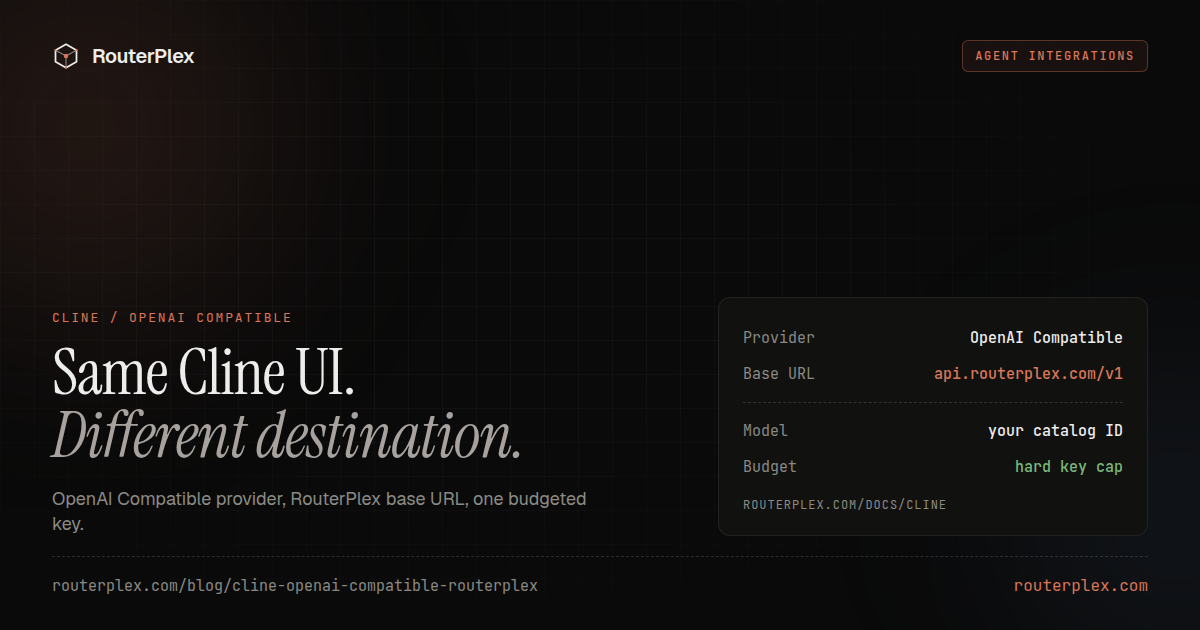
Cline can connect to RouterPlex through its built-in OpenAI Compatible provider. The setup needs three values: the RouterPlex base URL, a dedicated API key, and an exact model ID.
Cline's required fields were verified against the official OpenAI Compatible provider guide on July 15, 2026.
1. Create a key for Cline #
Do not reuse the key from a production application. Create a RouterPlex key named cline or after the repository, then set a hard budget.
Cline can inspect files, call tools, retry, and continue across several steps. A $5 or $10 test budget limits the cost of a mistaken loop while you verify the configuration.
2. Open Cline provider settings #
In Cline, open Settings and enter:
| Setting | Value |
|---|---|
| API Provider | OpenAI Compatible |
| Base URL | https://api.routerplex.com/v1 |
| API Key | Your RouterPlex key |
| Model ID | A current RouterPlex model ID |
For example, use claude-sonnet-4-6, gpt-5.5, or another ID from the model catalog.
Do not enter a display label such as "Claude Sonnet." Cline sends the Model ID field directly to the API.
3. Configure model capabilities #
Cline exposes optional model settings such as context window, maximum output, image support, and prices. Match capabilities to the selected model when Cline does not discover them automatically.
Incorrect capability settings can cause confusing behavior. For example, enabling image input for a text-only model does not add vision support.
Use the RouterPlex catalog and the provider's published model documentation as the source of truth.
4. Verify with a small task #
Use Cline's Verify action, then run a bounded task in a test repository:
Read package.json and summarize the available scripts.Do not edit files.
Check the RouterPlex usage page and confirm:
- The request used the dedicated Cline key.
- The expected model ID appears.
- Token usage and cost are plausible.
- The remaining key budget decreased.
Troubleshooting Cline with RouterPlex #
Invalid API key
Create a fresh key if the credential was copied incompletely or exposed. Confirm that Cline is using the RouterPlex key, not a vendor key.
Model not found
Copy the ID directly from the RouterPlex catalog. Model names change over time, and aliases used by another gateway may not exist.
Connection error
The base URL must be https://api.routerplex.com/v1. Do not use the dashboard URL and do not append /chat/completions.
Agent spends too quickly
Use a less expensive model for routine work, make tasks smaller, reduce parallel activity, and lower the server-side key budget. A local warning is useful, but the RouterPlex budget is the hard stop.
A practical Cline key policy #
- One key per repository or client.
- A small initial hard budget.
- A model allowlist when the repository should use only approved models.
- Immediate key rotation if it appears in a committed settings file.
- Usage review after long autonomous tasks.
The same OpenAI Compatible fields, plus Continue and a Roo Code legacy note, are in the VS Code Cline and Continue docs.
Create a $5 RouterPlex account, then connect Cline with a key that cannot spend beyond the amount you choose.
Common questions
Frequently asked questions
Which Cline provider should I select for RouterPlex?
Select OpenAI Compatible, then enter the RouterPlex base URL, API key, and an exact RouterPlex model ID.
What is the RouterPlex base URL for Cline?
Use https://api.routerplex.com/v1. Cline adds the chat-completions path when it sends a request.
How should I control Cline costs?
Create a dedicated key with a hard budget, choose a suitable model, limit output where possible, and review usage after the first task.
Run the smallest paid test.
Add $5, cap the key, and verify the result with your own workload. No subscription, and credit never expires — a first top-up of $25+ is matched with $25 extra.